Tutorials8 min read
Chatbot website integration: add an AI chatbot in 5 steps
Chatwize teamUpdated on Published on
Chatbot website integration comes down to five steps: decide which questions the chatbot should answer, give it your own knowledge, paste one snippet of code just before </body>, choose where it appears and test it with real customer questions. You don't need to code. Most of the work is in the knowledge, not the technology.
What does chatbot website integration mean?
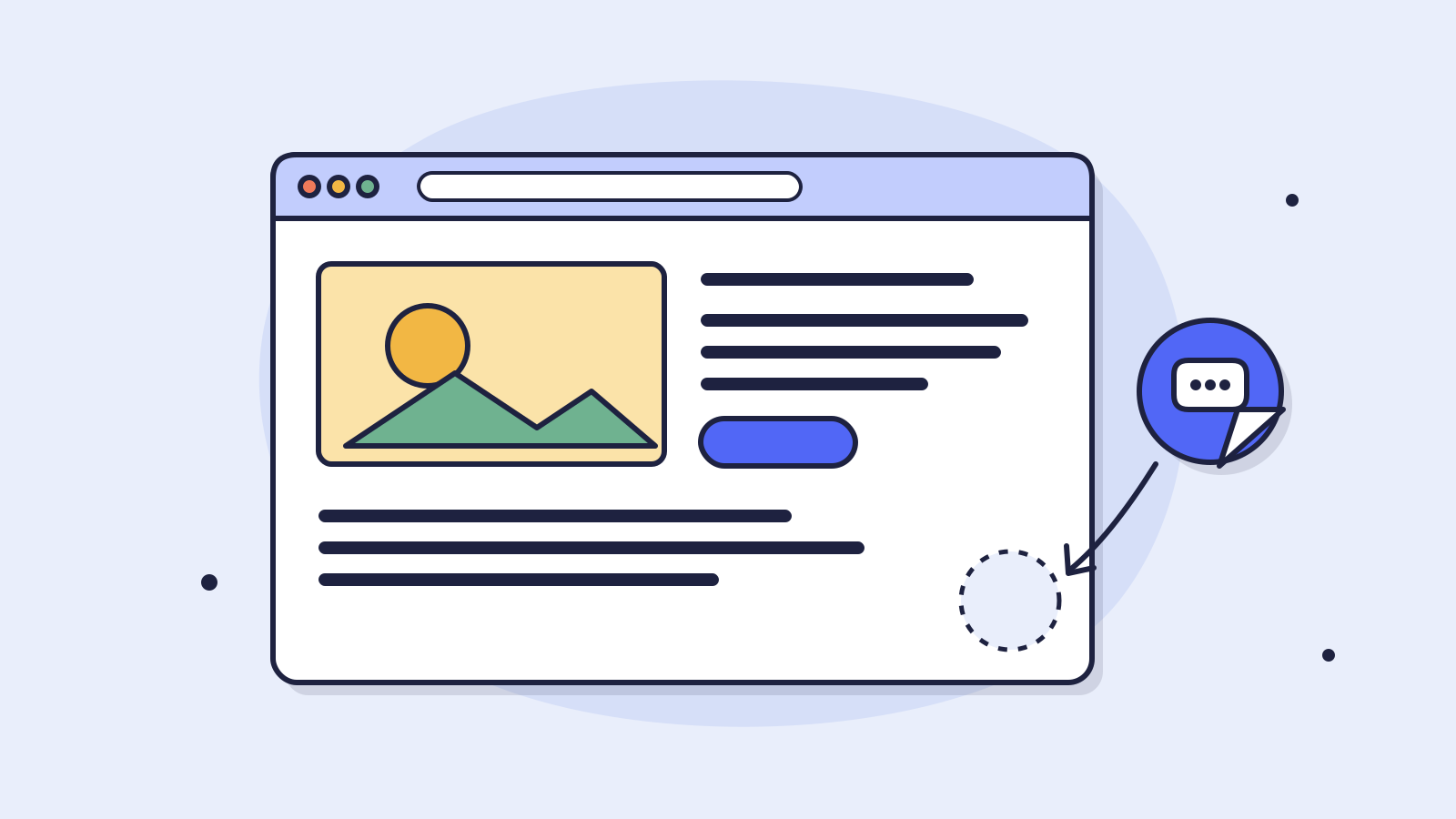
Integrating a chatbot into your website means adding a chat window to the site you already have. Usually that takes one line of code from the provider. An AI chatbot then reads your visitors' questions and answers from your own information: your products, prices, delivery times and terms. Your website itself doesn't change. The chat sits on top of it, as a button in the corner.
Picture a packaging wholesaler. At ten in the evening a buyer wants to know whether a box also comes in 40 by 30 centimetres and what the minimum order is. Without a chat, they send an email and wait until the next morning, or order somewhere else. With an assistant on the site they get the answer right away, with a link to the right product.
Step 1. Which questions should the chatbot answer?
Don't start with the technology, start with your inbox. Which questions does your team get every single day? Those are the ones where a chatbot pays off most, because the answer is fixed. It depends on your product range, your price list or your terms, not on someone's judgement.
- Webshop: when will it arrive, can I return it, which size do I need, does this part fit my model?
- Wholesaler or importer: what's the minimum order, is it in stock, what are the volume prices, do you ship abroad?
- Rental: what does it cost per day or per week, how much is the deposit, can I collect it myself, what if it rains?
A quick way to find them
Go through last month's emails and chat messages and write down every question that came up more than once. That list is your goal, and later your test.
Step 2. What knowledge does it need?
An AI chatbot is only as good as the information you give it. If something isn't in its knowledge, it should say so honestly and point the visitor to a person, not guess. So first gather what a good employee would look up too.
Knowledge to prepare
- The pages of your website: products, categories, FAQ, contact.
- Your price list, including any volume discounts or surcharges.
- Delivery and returns: delivery times, shipping costs, countries, how returns work.
- Your terms and conditions or rental terms, in plain language where you can.
- What it must not do: promise discounts, give medical or legal advice, handle complaints on its own.
Step 3. How do you integrate a chatbot into your website?
The provider gives you a short script. You paste it into your site just before the closing </body> tag, so it only loads once the rest of the page is there. Almost every website builder has a field for this, usually called “custom code”, “code injection” or “footer”. Paste it into the shared footer and the chat appears on every page at once.
| Website platform | Where the code goes | Watch out for |
|---|---|---|
| WordPress | With a header and footer plugin (for example WPCode), in the Footer box | On WordPress.com you need a paid plan to install plugins |
| Shopify | Online Store > Themes > Edit code > theme.liquid, just before </body> | If you switch themes, paste the code again |
| Wix | Settings > Custom Code, place “Body - end”, all pages | Only with a paid plan and a connected domain |
| Squarespace | Settings > Developer Tools > Code Injection > Footer | Not on the Personal plan; doesn't run in the preview |
| Webflow | Site settings > Custom Code > Footer Code, then publish | A paid Site plan is needed for your own domain |
| Custom-built site | In the shared template, just before </body> | Ask your developer to add it to the footer every page uses |
Want to try it on one page first?
You can. Put the code on that single page instead of in the footer. That way you see how it behaves before every visitor does.
Step 4. Where on the page should it appear?
In practice you'll see three forms most often. You can combine them.
- A button in the corner, bottom right or bottom left. The default: visitors recognise it and it doesn't get in the way. Start here.
- A chat block inside a page, for example on your customer service page. Whoever lands there is looking for help and sees straight away where to ask.
- A dedicated chat page behind a link. Useful in an order confirmation or newsletter: one click and the customer asks their question.
Don't
Pop the chat open over your product photo after three seconds. It feels like an ad. A short welcome line next to the button is enough to show it's there.
Step 5. What should you test before going live?
Test list before you publish
- Ask the ten questions from step 1 the way customers actually type them, typos included.
- Ask something that isn't in its knowledge. Does it admit it doesn't know, and point you to a person?
- Ask for a human, also outside office hours. Does the visitor know what happens next?
- Open the site on your phone. Does the button cover your cart or another button?
- Check the site in a private window, with the cookie banner still open.
- Do you get customers from abroad? Ask a question in their language too.
What about privacy and cookies?
In a chat, visitors quickly share personal data: a name, an email address, an order number. If you serve customers in the EU, the GDPR applies, just as it does to your contact form. Mention the chat in your privacy policy, don't ask for more data than you need, and ask your provider where conversations are stored. With Chatwize, your data is stored in the EU.
Cookies that are strictly necessary for your website to work generally don't need consent under EU rules. Cookies that track visitors do. So ask your provider which cookies the chat sets, and put it in the right category in your cookie banner.
What if the chat button doesn't show up?
- Not published yet. In Wix, Webflow and Squarespace the code only runs on the live site, not in the editor.
- Caching. If you use a caching plugin or CDN, clear the cache and reload the page.
- Pasted twice. If the code is in both the header and the footer, you'll see two buttons or none.
- The domain isn't set up. Some providers only allow the chat on domains you've listed. Check that your address is there, with and without www.
- The cookie banner blocks it. Some banners hold back scripts until the visitor consents. Check which category the chat is in.
- An ad blocker in your own browser. Test in a private window or on your phone.
Frequently asked questions about chatbot website integration
- Do I need to code to add a chatbot to my website?
- No. You paste one snippet into a field your website platform already has, such as Custom Code in Wix or a header and footer plugin in WordPress. The real work is preparing the knowledge: your products, prices and terms.
- Will a chatbot slow down my website?
- Usually you won't notice, as long as the script loads after your page is in place. That's why you paste it just before </body>. To be sure, measure your page before and after with Google's PageSpeed Insights.
- How long does it take to integrate a chatbot into a website?
- Pasting the code takes minutes. Most of the time goes into preparing your knowledge and testing with real questions. How long that takes depends on how many products and rules you have.
- Can the chatbot hand a conversation over to a person?
- A good AI chatbot can, and it should: with a complaint or a question outside its knowledge, a customer wants a human. With Chatwize, the visitor can ask for a team member. Outside office hours they leave their question or email address.
- Does a website chatbot work on mobile?
- Yes, the chat adapts to the screen. Do check on your own phone that the button doesn't cover another button, such as your cart or a cookie notice.
- How much does an AI chatbot for your website cost?
- It mainly depends on the number of conversations per month. Our article on AI chatbot costs in 2026 lists the monthly prices and one-off costs side by side.
Read next
Product8 min read
AI chatbot cost in 2026: what you pay monthly and up front
What an AI chatbot for your website costs per month and up front, with and without VAT, what is and isn't included, and a simple sum to see when it pays for itself.
Tutorials8 min read
A multilingual AI chatbot live in one day: practical guide
From empty dashboard to a chatbot helping customers in their own language, no developer required. Includes the ten test questions to ask before going live.
Customer service11 min read
AI chatbot for SMBs in the Netherlands: complete guide
Complete SMB guide for AI chatbots: why no-code is essential, what realistic ROI looks like in 3-6 months and how to launch in 30 days. With examples.
Ready to make this happen for your team?
Book a short demo and we'll show how Chatwize fits your customer questions, channels and processes.